
How to make a phone simpler for seniors and elderly parents
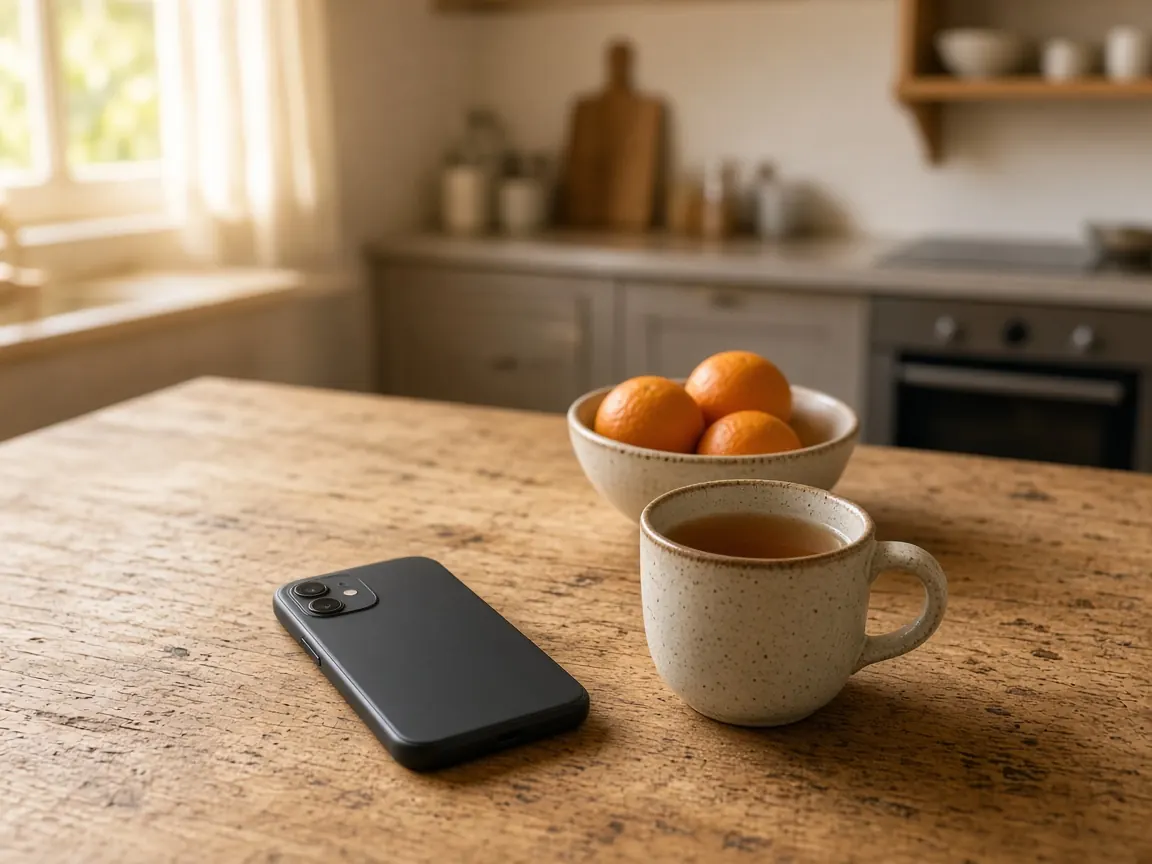
Quick answer. Start with the phone they already have. Turn on the simpler mode already on it: Assistive Access on an iPhone with iOS 17 or later, Easy mode on a Samsung Galaxy, or Simple View on a Google Pixel. Then make the words bigger and bolder, keep the apps they use on the first screen, and put the people they call there, with the names they actually say and a clear photo. Do it together, at their pace. Each setting can be turned off again later if it does not suit them. Sunday Visit is a calm, Australian-made phone app that can also sit on that phone, with six big buttons family can set up.
After the simpler mode, turn up the text size, keep the first screen to the apps they use, and put the people they call where they can see them. That is often enough to make the phone they already have a simpler mobile phone for seniors, or a mobile phone for elderly people, and it also helps a friend, or someone with low vision or shaky or sore hands, who would like bigger words, steadier taps or fewer choices.
Before you start
- Ask what bothers them most. Small words, too many icons and calls that are hard to find are common answers. Start with theirs.
- Charge the phone and connect it to Wi-Fi.
- Have their phone passcode ready. Some of these settings ask for it.
- Sit side by side so they can see each change as you make it.
Step 1. Try the simpler mode that is already on the phone
On an iPhone: Assistive Access shows a few large buttons, with only the apps you pick. Go to Settings, then Accessibility, then Assistive Access, then Set Up Assistive Access. The setup asks you to choose the apps, pick rows or a grid, and set an Assistive Access passcode. To leave it, triple-click the side button (or the Home button), then enter that passcode. Apple suggests doing it with someone you trust. Apple's guide: Set up Assistive Access on iPhone.
On a Samsung Galaxy: go to Settings, then Display, then turn on Easy mode. The screen and the words get bigger. Samsung's guide: Using Easy mode.
On a Google Pixel: go to Settings, then Accessibility, then Simple View, then turn on Use Simple View. It gives larger text and icons and a simpler Home screen. Turning it off puts the old settings back. Google's guide: Use Simple View on your Pixel phone.
Other Android phones may use a different name for this. Search Settings for "easy" or "simple".
Step 2. Make words bigger and bolder
Even in a simpler mode, the words may still feel small.
On an iPhone: go to Settings, then Accessibility, then Display & Text Size, then Larger Text, and drag the slider. Bold Text is on the same screen. Apple's guide: Make text easier to read on iPhone.
On an Android phone: open Settings, search for "Font size" and move the slider. Search for "Display size" to make everything bigger. Google notes that some apps don't follow the font size. Google's guide: Change text and display settings.
Let them read a message after each change. If buttons start to overlap, go back one step.
Step 3. Take off the apps they don't use
Fewer icons means less to search through. You don't have to delete anything to make the screen calmer.
On an iPhone: touch and hold an app, tap Remove App, then Remove from Home Screen. The app moves to the App Library and stays on the phone. Delete App takes it off the phone completely. Apple's guide: Remove or delete apps on iPhone.
On an Android phone: touch and hold an app and drag it to Remove. That takes it off the Home screen only. Uninstall takes it off the phone. Google's guide: Customise your Home screens.
Ask before you take anything away, even an app you think they never open.
Step 4. Put the people they call on the first screen
Calling family is often the main reason for having the phone. Make it the easiest thing to find.
On an iPhone: in Contacts, choose a person, scroll down and tap Add to Favourites. They then sit in Favourites in the Phone app. Put the Phone app on the first screen. Apple's guide: Use contacts from the Phone app on iPhone.
On a Samsung in Easy mode: swipe across to the contacts page on the Home screen and tap the plus sign to add people. Samsung's guide: Using Easy mode.
On other Android phones (Android 12 or later): touch and hold the Contacts app, tap Widgets, and drag a single contact onto the Home screen. Google's guide: Add a contact widget.
Use the names they actually say, like "Mum" or a nickname, and add a clear photo of each face.
Step 5. Give taps and swipes a little more time
Some people tap quickly, some tap slowly, and some rest a finger on the screen. The phone can learn their way.
On an iPhone: go to Settings, then Accessibility, then Touch, then Touch Accommodations, and tap Set Up Touch Accommodations. You can then turn on Hold Duration (the phone waits for a longer touch) or Ignore Repeat (several quick taps count as one). On the same Touch screen, Haptic Touch lets you pick a slower touch-and-hold. Apple's guide: Adjust how iPhone responds to your touch.
On an Android phone: open Settings, then Accessibility, then Touch & hold delay, and choose Long if a tap sometimes becomes a touch-and-hold. Google's guide: Touch & hold delay. In the same Accessibility menu, Time to take action keeps short pop-up messages on screen for longer (Android 10 or later). Google's guide: Change time to take action.
Buttons instead of swipes: on Android you can swap swipe gestures for three buttons at the bottom of the screen (Back, Home and Recents). Google suggests this for anyone who finds precise swipes fiddly. Google's guide: Get around on your Android device.
Step 6. Let the screen stay on, and make calls easy to answer
A screen that goes dark mid-read is a small, daily annoyance. It takes a minute to fix.
On an iPhone: go to Settings, then Display & Brightness, then Auto-Lock, and choose a longer time. Apple notes a longer time can use more battery. Apple's guide: Keep the iPhone display on longer.
On an Android phone: open Settings, then Display (or Display & touch), then Screen timeout, and pick a longer time. Google's guide for Pixel: Manage screen & display settings.
Answering calls (iPhone): under Settings, then Accessibility, then Touch, then Call Audio Routing, you can send calls straight to the speaker, a headset or a hearing device. Auto-Answer Calls is on the same screen. It answers calls on its own after a few seconds you choose, so only turn it on if they want it. Apple's guide: Route and automatically answer calls on iPhone.
Words on screen during calls: Live Captions shows what's being said as text. It works on iPhone 11 or later (Settings, then Accessibility, then Live Captions) and on Pixel and selected Android phones (search Settings for "Live Caption"). Apple notes it isn't available in every language or region. Apple's guide: Get live captions. Google's guide: Live Caption.
Step 7. Leave it a week, then adjust
Let them live with it for a few days. Then ask what still gets in the way. Small changes after a week usually work better than a big change on day one.
A one-page checklist to do together
- Simpler mode on: Assistive Access, Easy mode or Simple View.
- Words: bigger, and bold if they like it.
- Home screen: only the apps they use, with nothing deleted.
- People they call: on the first screen, with their names and photos.
- Taps: more time to touch and hold, if that suits them.
- Screen: stays on long enough to read.
- Calls: through the speaker or hearing device they like, with captions if they want them.
- One week on: ask what still gets in the way, and change one thing.
If a few big buttons would help
Sometimes the phone's own settings are enough. Sometimes a person would rather open one calm app.
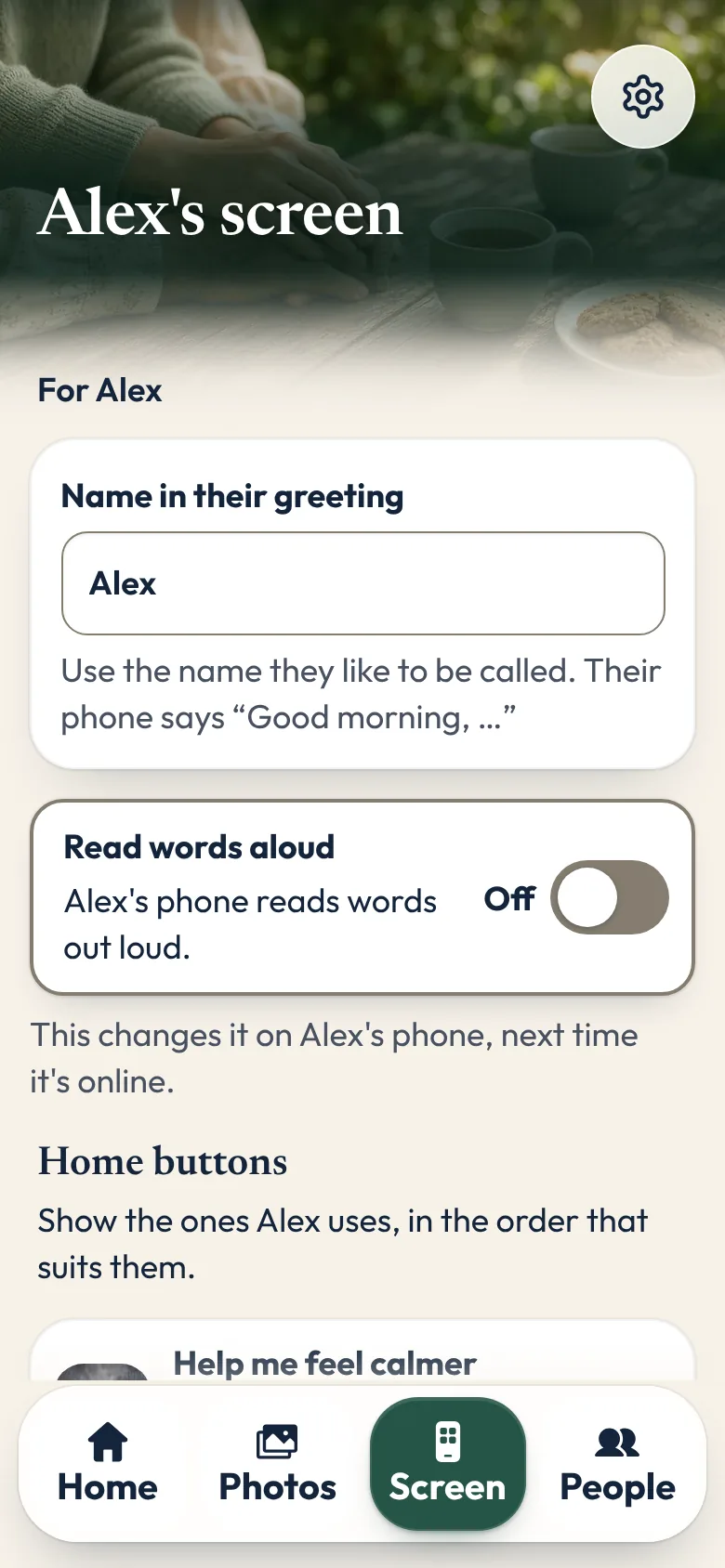
That is why we made Sunday Visit. Sunday Visit is a calm, Australian-made phone app for seniors and elderly people, and anyone who'd like a simpler phone, with six big buttons for gentle sounds, family photos, easy movement, quiet games, memories and calls to people they trust. Family choose what's on it in a linked second app, Sunday Visit Carer.
Its home screen has six big buttons: Calm, Album, Move, Games, Memories and Call, with I'm not sure underneath.
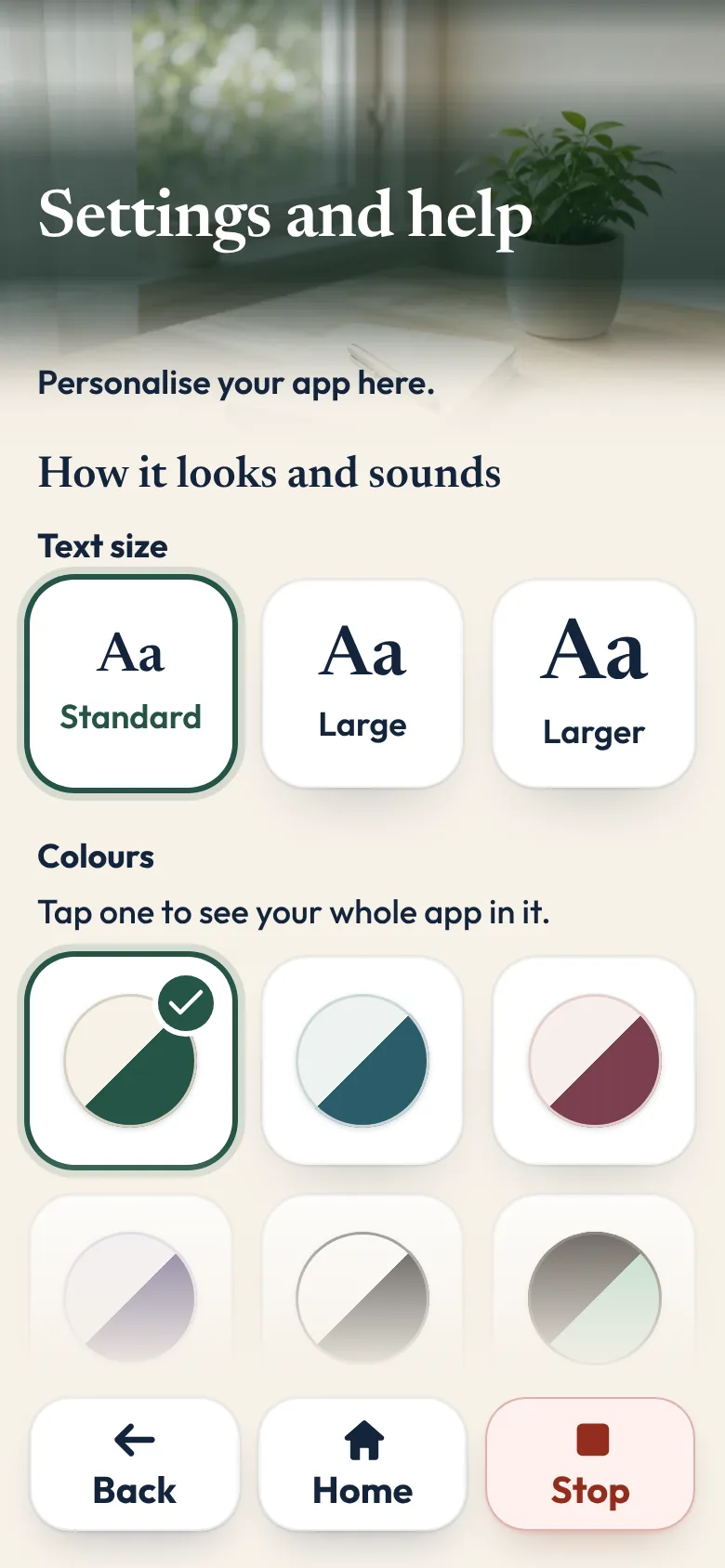
Words follow the phone's own text size, and there are three text sizes in the app as well. Read words aloud uses the phone's own voice where the phone supports it. It is off until someone turns it on. There are no ads and no scores.
The older person doesn't need an account, an email or a password. Family can set up the buttons and people from a second app, Sunday Visit Carer, but it is optional.
In an emergency, call Triple Zero (000), or your local emergency number outside Australia.
It works on Android 8.0 or newer and iOS 15 or newer. Both apps are on Google Play. Get Sunday Visit for their phone and Sunday Visit Carer for yours. You can find them at sundayvisit.com.au.
Questions families ask
Can I make my mum's phone simpler without buying a new one?
Usually, yes. iPhones with iOS 17 or later have Assistive Access, a built-in mode with bigger buttons and only the apps you choose. Samsung phones have Easy mode and Pixel phones have Simple View. Then turn up the text size, take off the apps she doesn't use, and put the people she calls on the first screen.
Is there an app with bigger buttons for older eyes?
Start with the phone's own settings: larger text, bold text and the simpler modes above. Sunday Visit is one app built this way, with six big buttons, a choice of text sizes and an optional Read words aloud setting. It is on Google Play. You can find it at sundayvisit.com.au.
What should be on the first screen of an older person's phone?
Only what they use every day: the people they call, their photos, and one or two things they enjoy. Fewer choices make each one easier to find.
Will they lose anything if we remove apps?
Not if you remove them from the Home screen only. On an iPhone they stay in the App Library, and on Android they stay on the phone. Deleting or uninstalling is different, so check before you choose.
What if they want the old way back?
That is fine. It is their phone. Each step can be turned off again in Settings, and Simple View on a Pixel puts the old settings back when you turn it off.
Is there an Android phone for seniors?
You usually don't need a new Android phone for seniors. Use the simpler mode already on the phone they have: Easy mode on many Samsung Galaxy phones, or Simple View on Google Pixel phones. Then make the words bigger, take off apps they don't use, and put the people they call on the first screen. Sunday Visit is an app for the phone they already have (Android 8.0 or newer), with six big buttons for family photos, calm activities and calls.
How do I stop the screen going dark so quickly?
Make the auto-lock time longer. On an iPhone, go to Settings, then Display & Brightness, then Auto-Lock. On Android, go to Settings, then Display, then Screen timeout. A longer time can use more battery.
What if taps keep opening the wrong thing?
Give the phone more time to read each touch. On an iPhone, try Touch Accommodations in Settings, then Accessibility, then Touch. On Android, set Touch & hold delay to Long in Settings, then Accessibility.
Can an iPhone answer calls on its own?
Yes. Auto-Answer Calls is in Settings, then Accessibility, then Touch, then Call Audio Routing. It answers every incoming call after the number of seconds you set, so turn it on only if they want it.
Are these settings only for seniors?
No. They help anyone who'd like bigger words, steadier taps or fewer choices, at any age.
More guides for families
- How to set up a phone for an elderly parent, in 5 steps
- Calm games and activities for seniors, with no ads
- Share family photos on a phone, in one shared album
- How to stay in touch with elderly parents who live far away
- A simple phone app for seniors with memory changes
- How to choose a phone for elderly parents in Australia
- Phone settings for low vision: Android and iPhone
- Helping an elderly parent: first visits, one skill at a time
- How to make a first FaceTime call with someone you love
- Make a phone easier to hear, or to use without relying on sound.
- A simpler phone, and how that sits with the NDIS.
- Make a phone easier to use when hands are shaky or sore.
- A simpler phone, with six big buttons family can set up.
- Set up a simpler phone from a phone you already have.
A simple phone app with six big buttons
Something else? The help page has more, or email hello@sundayvisit.com.au.