
How to set up a phone for an elderly parent, in 5 steps
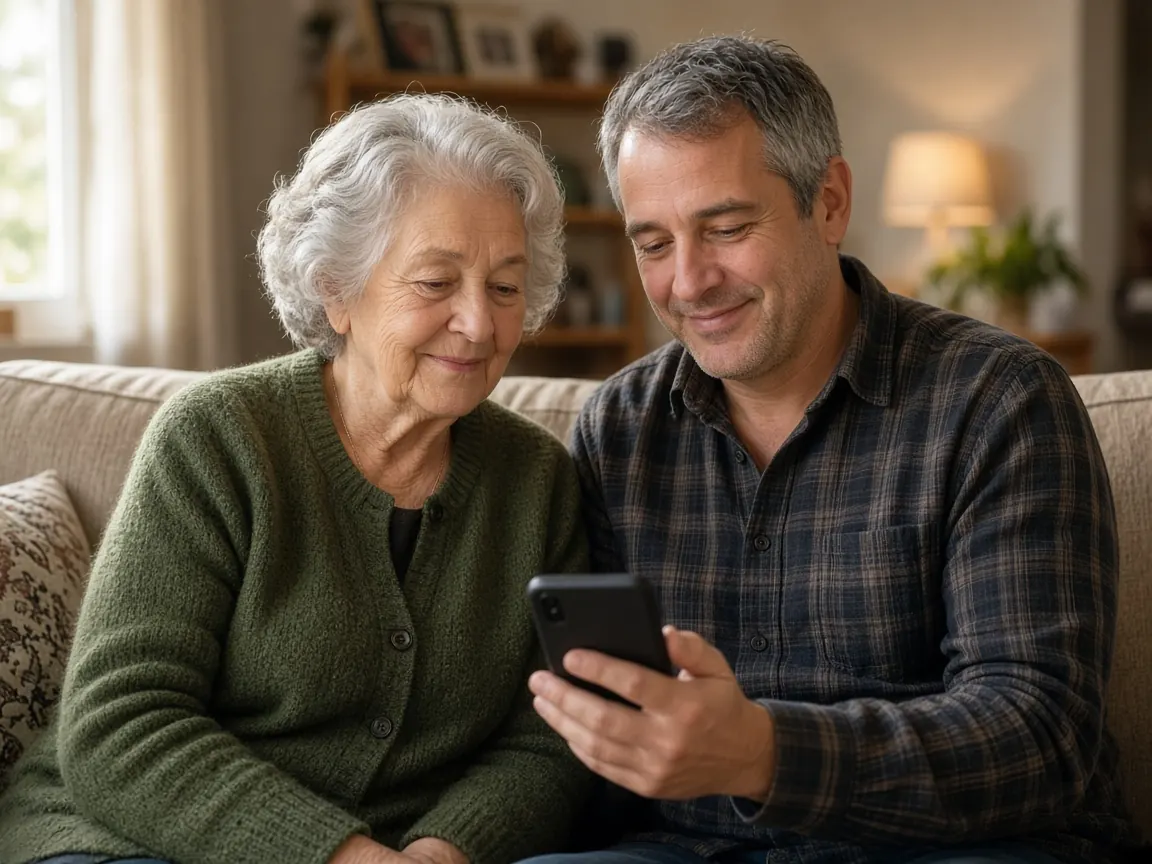
A new phone, or an old phone that has become hard to use, can feel like a lot for an elderly parent. Most of the help is already built into the phone. You only need an unhurried afternoon and a bit of patience on both sides.
This checklist works for most iPhones and Android phones. Do it together, at their pace, and stop whenever they have had enough. You can always finish another day.
Before you start
- Pick a calm time of day when neither of you is rushing.
- Charge the phone, and connect it to their home Wi-Fi.
- Sit side by side, so they can see the screen and hold the phone themselves.
- Have their Apple Account or Google Account details ready if they have them. Some settings ask for them.
- Ask what bothers them most about the phone, and start there.
Step 1. Make words bigger and the screen easier to see
Small text is often the first problem, and one of the quickest to fix.
On an iPhone: go to Settings, then Accessibility, then Display & Text Size, then Larger Text, and drag the slider. Bold Text is on the same screen. Display Zoom makes icons and buttons bigger as well. Apple's guide: Make text easier to read on iPhone.
On an Android phone: open Settings and search for "Font size", then move the slider. Search for "Display size" to make everything on the screen bigger. The names can differ a little between phone makers. Google's guide: Change text and display settings.
Make a change, then let them read a message. If buttons get squashed, go back one step.
If they use an iPhone and want far fewer choices on screen, Apple has a simpler mode called Assistive Access. It takes some time to set up, so save it for another visit. Apple's guide: Set up Assistive Access on iPhone.
Step 2. Choose the few people they call most
Most people call the same handful of people. Make those few very easy to find.
- Add each person to Contacts with the name they actually use, like "Mum" or a nickname, not a full formal name.
- Add a clear photo of each face. A face is quicker to recognise than a name.
- Put them in Favourites in the Phone app, so they sit at the top.
Keep it to a small number at first. A short list is easier to trust.
Step 3. Add a few familiar things they love
A phone feels more like theirs when it holds things they care about.
- A few recent family photos, and a few older ones they know well.
- One or two favourite songs, or a short video of family saying hello.
- A lock screen photo they will smile at.
Ask them to choose. It is their phone.
Step 4. Check how to reach Triple Zero (000) on that phone
In Australia, Triple Zero (000) is the number for police, fire and ambulance. More on the government's Triple Zero page.
- Show them where the keypad is, and talk through what they would say. Do not actually dial.
- Phones also have emergency shortcuts on the side buttons. Pressing them can start a real call, so read about them rather than trying them. Apple: Use SOS to contact emergency services on your iPhone. Google: Get help during an emergency with your Android phone.
- If they use a passcode, make sure they know it, and agree where a written copy is kept.
Step 5. Let them try it, then write a one-page how-to
Now hand it over. Ask them to call you, find a photo and make the text a little bigger or smaller. Resist the urge to reach over and tap for them.
Then write a single page together, in their words. "To call me, tap the green phone, then Favourites, then my photo." Keep it by the phone or on the fridge. Their wording will make more sense to them than any manual.
Plan a short check-in a week later, once they have lived with it for a few days.
How to set up an iPhone for a senior
If the senior you're helping uses an iPhone, the steps above already cover it. Start with Larger Text and Bold Text in Step 1, then put their few people in Favourites in the Phone app in Step 2. In Step 4, read Apple's SOS guide together rather than pressing the side buttons.
These are the iPhone's own settings, so they help any elderly person with an iPhone, whichever apps they use.
If a few big buttons would help
Sometimes the phone's own settings are enough. Sometimes a person would rather open one calm app with a few big buttons.
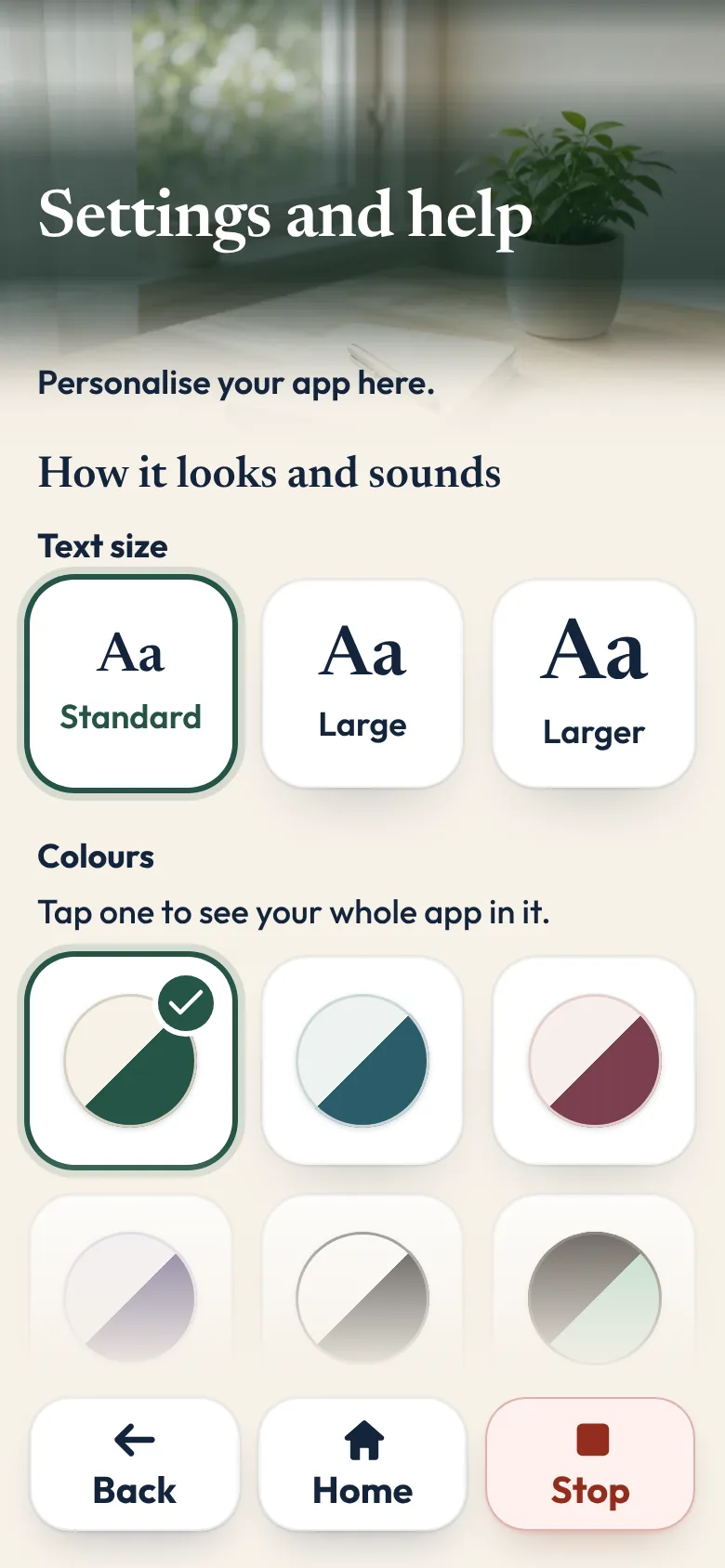
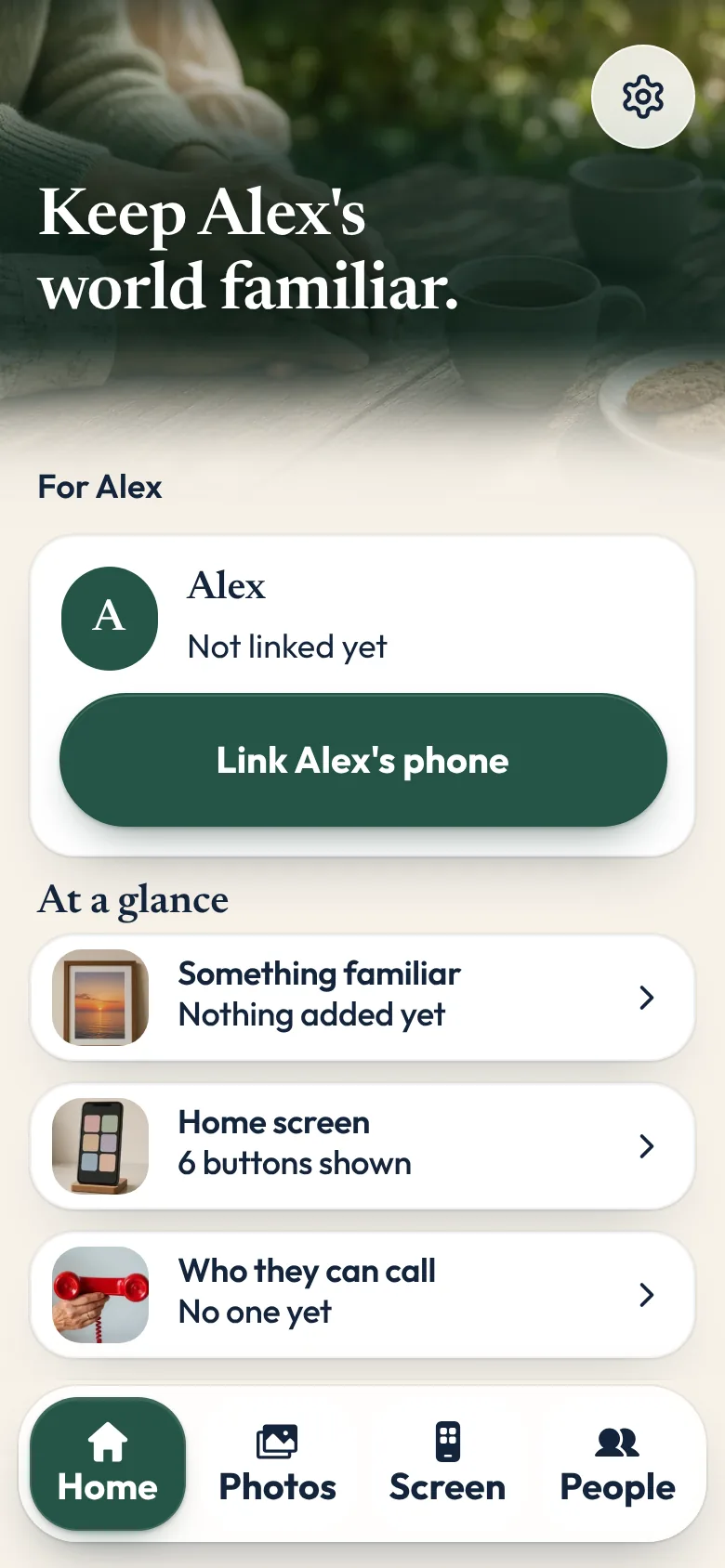
That is why we made Sunday Visit. Sunday Visit is a calm, Australian-made phone app for seniors and elderly people, with six big buttons for gentle sounds, family photos, easy movement, quiet games, memories and calls to people they trust. Family choose what's on it in a linked second app, Sunday Visit Carer.
Its home screen has six big buttons: Calm, Album, Move, Games, Memories and Call, with I'm not sure underneath.
Up to four trusted people can be added by name and photo, which you can do on their phone, sitting together, and calls open the phone's own calling app. Album holds their photos, favourite songs and short videos.
Read words aloud uses the phone's own voice where the phone supports it. It is off until someone turns it on.
Family can use a second app, Sunday Visit Carer, to set up the buttons, people and photos. Once the two phones are linked, changes arrive when both phones are online.
In an emergency, call Triple Zero (000), or your local emergency number outside Australia.
It works on Android 8.0 or newer and iOS 15 or newer. Both apps are on Google Play. Get Sunday Visit for their phone and Sunday Visit Carer for yours. You can find them at sundayvisit.com.au.
Questions families ask
How long does it take?
Allow an unhurried afternoon, with breaks. It is fine to spread it over two visits.
Should I set it up before I give it to them?
Charging it and connecting Wi-Fi first is helpful. Do the rest together, so they know where things are and the choices are theirs.
What if they forget how to do something?
That is normal. The one-page how-to in their words helps most. A quick call to talk it through helps too.
Is a simpler phone better than a smartphone?
It depends on the person. Some people prefer a basic phone with physical buttons. Others enjoy photos and video calls on a smartphone. Ask what they want to do with it, then choose.
Can I practise calling Triple Zero (000)?
No. Only call Triple Zero (000) in an emergency. Practise finding the keypad and talking through what to say instead.
More guides for families
- How to make a phone simpler for seniors and elderly parents
- Share family photos on a phone, in one shared album
- How to stay in touch with elderly parents who live far away
- A simple phone app for seniors with memory changes
- Calm games and activities for seniors, with no ads
- Helping an elderly parent: first visits, one skill at a time
- How to make a first FaceTime call with someone you love
- Make a video call simpler for someone you love.
- Make a phone easier to hear, or to use without relying on sound.
- Help with a parent's phone when you live in another state.
- Make a phone easier to use when hands are shaky or sore.
A simple phone app with six big buttons
Something else? The help page has more, or email hello@sundayvisit.com.au.