
Phone settings for low vision: Android and iPhone
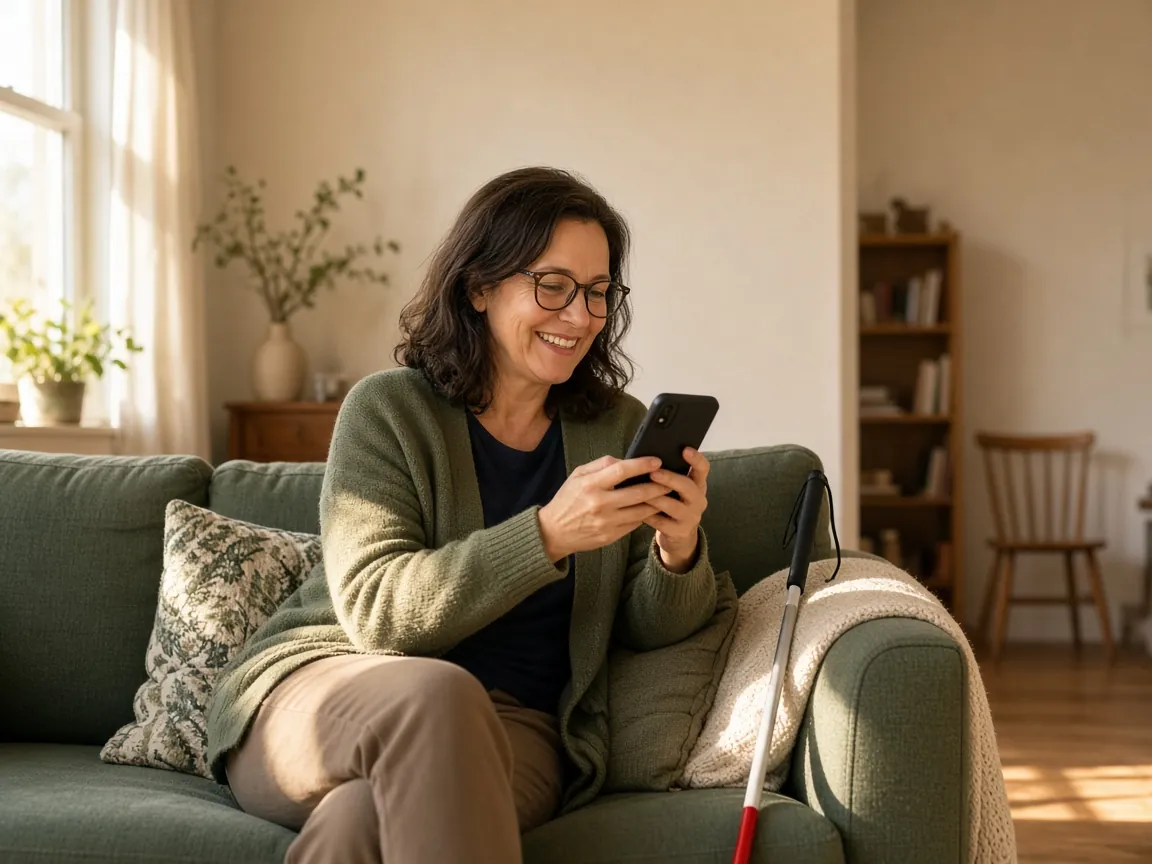
Most phones already have settings that make words bigger, bolder and easier to see, and that read the screen aloud. Try them before buying a new phone.
Vision Australia says 575,000 people in Australia are blind or have low vision. Low vision means a person still has some useful sight, but glasses are no longer enough. These settings are for seniors who find small print hard to read, and anyone with low vision, at any age.
Before you start
- Sit together in good light, with their glasses if they use them.
- Change one setting at a time, then let them read a message.
- Write down what you changed, so either of you can change it back.
- The names can differ a little between phone makers. If you can't find one, search Settings for it.
Step 1. Make the words bigger
Bigger text is usually the quickest fix.
On an iPhone: go to Settings, then Accessibility, then Display & Text Size, then Larger Text, and drag the slider. For even bigger sizes, turn on Larger Accessibility Sizes on the same screen. Apple's guide: Make text easier to read on iPhone.
On an Android phone: open Settings, search for "Font size" and move the slider. Search for "Display size" to make everything on the screen bigger. Google notes that some apps don't follow the font size. Google's guide: Change text and display settings.
Step 2. Make words bolder and clearer
Thin, pale letters are harder to read. Bold text and stronger contrast make them stand out.
On an iPhone: Bold Text and Increase Contrast are on the same Display & Text Size screen.
On an Android phone: go to Settings, then Accessibility, then Display size and text, then turn on Bold text. On Android 16 or newer, try Outline text too. On Android 15 and older, look for High contrast text.
Some people find light words on a dark background easier to read. On Android, Dark theme is in Settings, then Accessibility.
Step 3. Zoom in when something is too small
Zoom makes part of the screen bigger for a moment, without changing everything else.
On an iPhone: go to Settings, then Accessibility, then Zoom, and turn it on. Then double-tap the screen with three fingers to zoom in, and again to zoom out.
On an Android phone: go to Settings, then Accessibility, then Magnification, then Magnification shortcut. Choose the shortcut that suits them: the Accessibility button, holding the volume keys, or triple-tapping the screen. Android can magnify up to 8 times. Google's guide: Magnification on Android.
Step 4. Have the phone read the screen aloud
When reading is tiring, the phone can read the words out loud.
On an iPhone: go to Settings, then Accessibility, then Spoken Content (on iOS 26, it's called Read & Speak), and turn on Speak Screen. Then swipe down from the top of the screen with two fingers to hear the whole screen.
On an Android phone: go to Settings, then Accessibility, then Select to Speak, and turn on the Select to Speak shortcut. Then tap the shortcut, and tap words on the screen to hear them. Google's guide: Select to Speak.
For someone with very little sight, the phone's screen reader reads everything: VoiceOver on an iPhone, TalkBack on Android. It changes how the phone is used, so it's worth learning with help. Vision Australia is on 1300 84 74 66.
Step 5. Check the apps they use most
Some apps don't follow the phone's text size. Open the apps they use most, such as Phone, Messages and Photos, and check the words are big enough. Some apps have their own text size setting.
Then leave it a week, and ask what still gets in the way. Small changes after a week usually work better than a big change on day one.
Help and support
- Vision Australia: 1300 84 74 66, Monday to Friday, 9am to 5pm AEST.
- If their eyesight has changed: book an eye test with an optometrist.
- In an emergency: call Triple Zero (000), or your local emergency number outside Australia.
Big buttons and bigger words
Phone settings help in every app. Some people would also like one calm app with fewer, bigger choices.
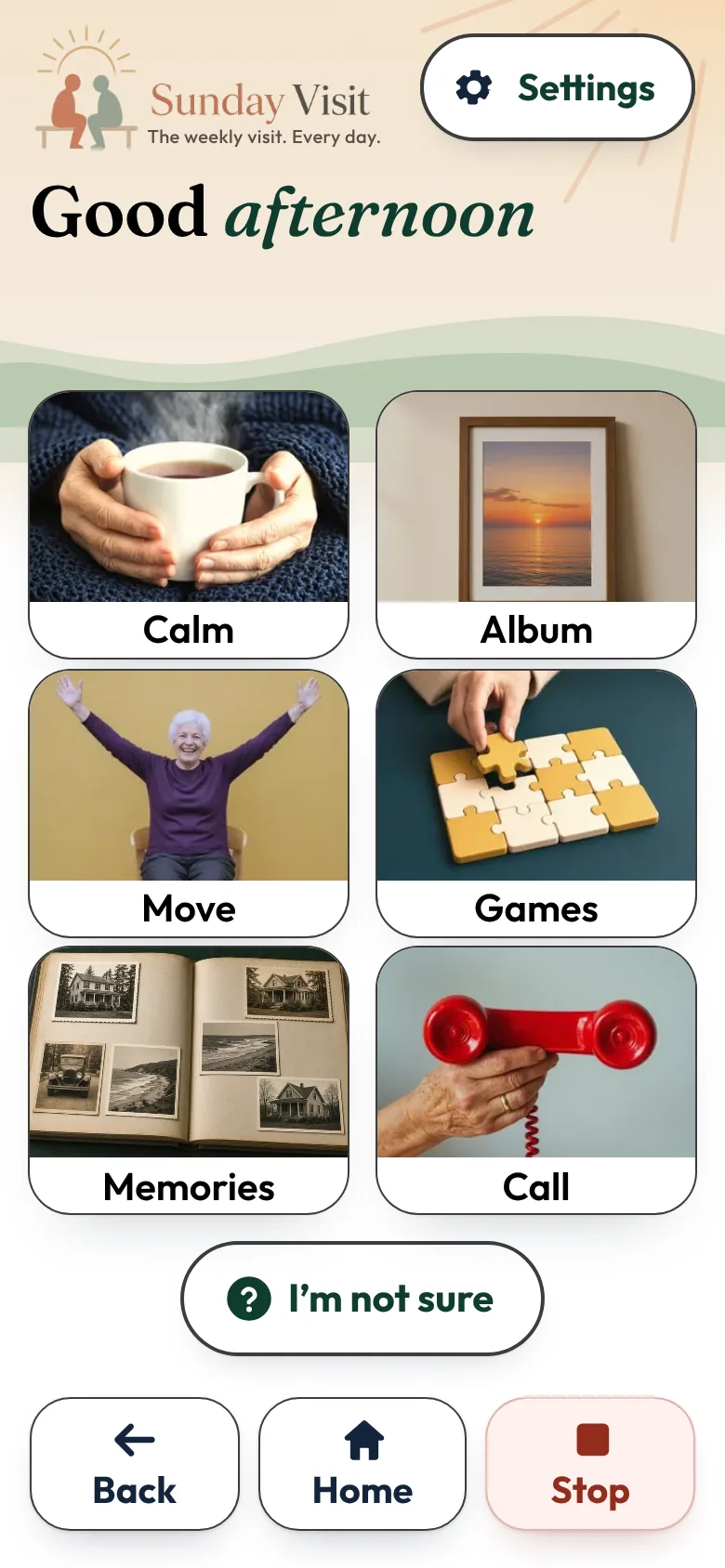
That is why we made Sunday Visit. Sunday Visit is a calm, Australian-made phone app for seniors and anyone who wants a simpler phone, with six big buttons for gentle sounds, family photos, easy movement, quiet games, memories and calls to people they trust. Family choose what's on it in a linked second app, Sunday Visit Carer.
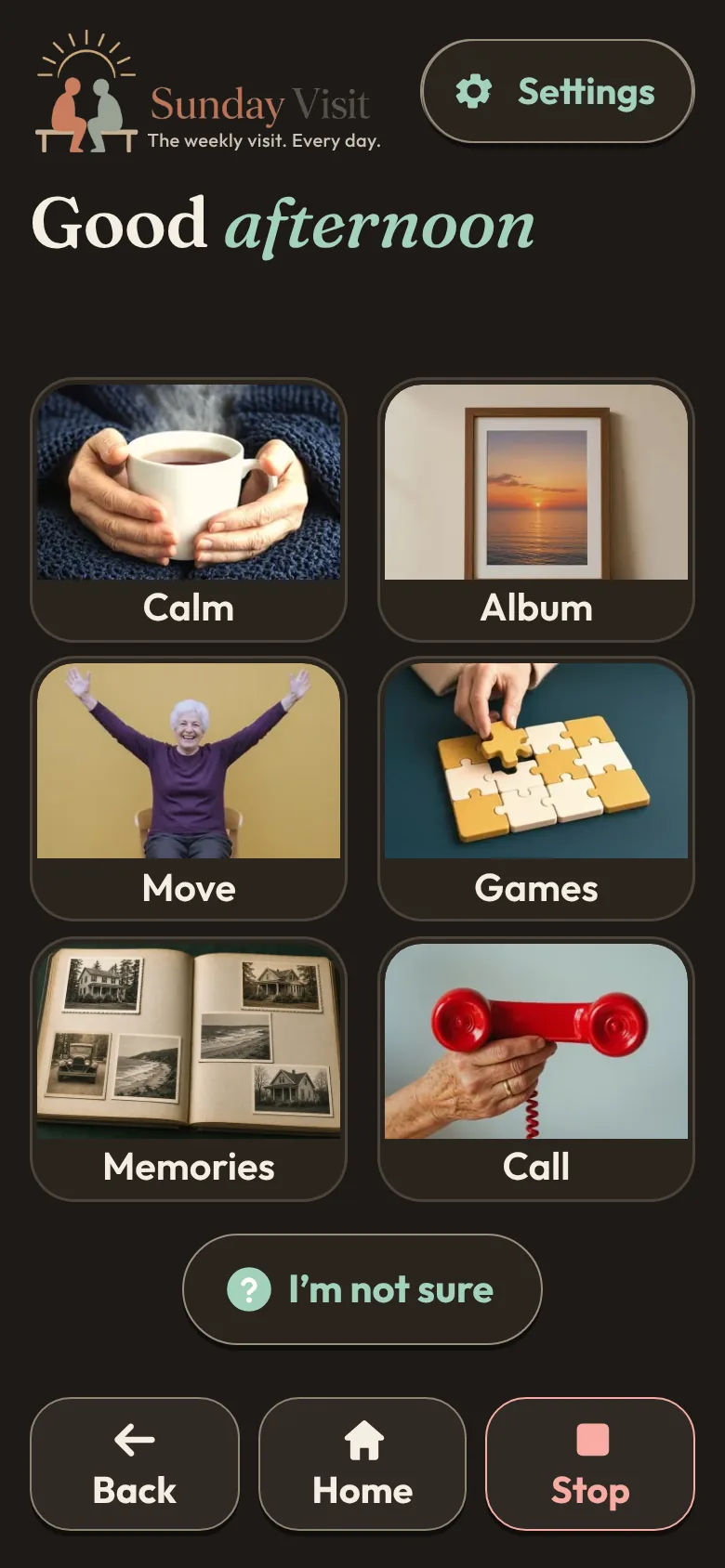
When the app is first set up, the words follow the phone's own text size. In Settings and help, under How it looks and sounds, Text size is three choices: Standard, Large and Larger. Colours include Strong contrast, black on white, and Dark, light words on a dark page.
When Read words aloud is on, the phone's own built-in voice reads out the screen they're on. Reading speed can be Normal or Slower.
In an emergency, call Triple Zero (000), or your local emergency number outside Australia.
You can try Sunday Visit in your browser, with example people and photos.
It works on Android 8.0 or newer and iOS 15 or newer. Both apps are on Google Play. Get Sunday Visit for their phone and Sunday Visit Carer for yours. You can find them at sundayvisit.com.au.
Questions families ask
How do I make the text bigger on an elderly parent's phone?
On an iPhone, go to Settings, then Accessibility, then Display & Text Size, then Larger Text. On an Android phone, open Settings and search for "Font size". Bold text and a bigger display size can help too.
Can a phone read the screen aloud?
Yes. On an iPhone, turn on Speak Screen in Settings, then Accessibility, then Spoken Content (Read & Speak on iOS 26), then swipe down from the top with two fingers. On Android, turn on the Select to Speak shortcut in Settings, then Accessibility.
What is low vision?
Vision Australia says low vision means a person still has some useful sight, but glasses are no longer enough. Vision Australia is on 1300 84 74 66, Monday to Friday, 9am to 5pm AEST.
Does Sunday Visit have big text?
Yes. When the app is first set up, the words follow the phone's own text size, and Text size has three choices: Standard, Large and Larger. Colours include Strong contrast and Dark. Sunday Visit is on Google Play.
More guides for families
- How to make a phone simpler for seniors and elderly parents
- How to set up a phone for an elderly parent, in 5 steps
- How to choose a phone for elderly parents in Australia
- Helping an elderly parent: first visits, one skill at a time
- Make a phone easier to hear, or to use without relying on sound.
- Make a phone easier to use when hands are shaky or sore.
A simple phone app with six big buttons
Something else? The help page has more, or email hello@sundayvisit.com.au.