
Share family photos on a phone, in one shared album

The simplest way to share family photos with an elderly parent, a grandparent or your mum is one shared album that family add to. Use a shared album in Photos on an iPhone, or in Google Photos on Android. New photos turn up without Nan having to do anything.
Keep it to one album, and put the app that holds it on her first screen.
Before you start
- Agree who looks after the album. One person in the family is enough.
- Ask Nan which photos she would like. Some people love new baby photos. Others love the old ones from years ago.
- Check her phone is on Wi-Fi, and that she knows her Apple Account or Google Account if she has one.
- If family use a mix of iPhones and Android phones, read Step 3 before you choose.
Step 1. If Nan has an iPhone: make a shared album in Photos
First, on each iPhone that will use the album, go to Settings, tap your name, tap iCloud, then Photos, and turn on Shared Albums. That includes Nan's phone.
Then, on your own iPhone, open Photos, tap Collections, then Shared Albums, and tap the plus button. Add some photos, give the album a name like "Family for Nan", and choose People You Choose so only invited people can see it. Then invite Nan and the rest of the family. She selects the link she receives, then Join.
By default, people in the album can add their own photos and videos, and comment. From iOS 27, the organiser can change what each person is allowed to do, for example so Nan can view and comment but not add.
Apple's guides: Create shared albums in Photos on iPhone and Add and remove people in a shared album.
Step 2. If Nan has an Android phone: make a shared album in Google Photos
On your phone, open Google Photos and sign in. Touch and hold the photos you want, then tap Create, then Album. Give it a title, tap Done, then tap Share and choose Nan and the rest of the family. You can share directly with anyone who has a Google Account. For others, you can share a link. Anyone with the link can see the photos and add to the album, so keep it within the family.
When you share with her, Nan gets a notification and the photos show up in her Updates in Google Photos. If you don't want others adding photos, the album owner can turn off Collaborate in the album's options.
Google's guides: Share photos and videos and How shared album controls work.
Step 3. If the family use a mix of phones
Google Photos also runs on iPhones, so one Google Photos album can work for everyone. Google's help has an iPhone version of the same steps: Share photos and videos on iPhone.
An Apple shared album can also include people without an Apple Account. From iOS 27, Apple says they can verify their email address to view, comment and add photos.
Pick one. Two albums in two apps is harder to keep up with than one.
Step 4. Put the album where she will find it
Move the Photos or Google Photos app onto her first screen, and take a few other icons off so it stands out. On an iPhone, touch and hold the Home Screen background until the icons jiggle, then drag the app. Apple's guide: Move apps and widgets on the Home Screen. On Android, touch and hold the app and drag it where you want it. Google's guide: Customise your Home screens.
Then show her the way in, once or twice. "Tap Photos, then Collections, then Family for Nan." Write it down in her words if that helps.
Step 5. Add voices as well
A short message in a familiar voice can mean as much as a photo.
On an iPhone: in Messages, tap the plus button, then Audio, and start speaking. Audio messages are deleted from the phone two minutes after they are played unless they tap Keep. To keep them all, go to Settings, then Apps, then Messages, then Expire under Audio Messages, and choose Never. Apple's guide: Send and receive audio messages.
In WhatsApp: open the chat, press and hold the microphone and speak. Let go to send. WhatsApp's guide: How to send voice messages.
Say who you are at the start: "Hi Nan, it's Sam."
Use their phone as a digital photo frame
The phone Nan already has can sit on a table like a photo frame. There's no new device to buy or learn.
Put it in a phone stand near a power point, and keep it plugged in.
Phones turn the screen off after a short while. To keep a photo showing for longer, choose a longer time in the phone's own settings. On an iPhone, that's Settings, then Display & Brightness, then Auto-Lock. On Android, open Settings and search for "Screen timeout". You can change it back afterwards.
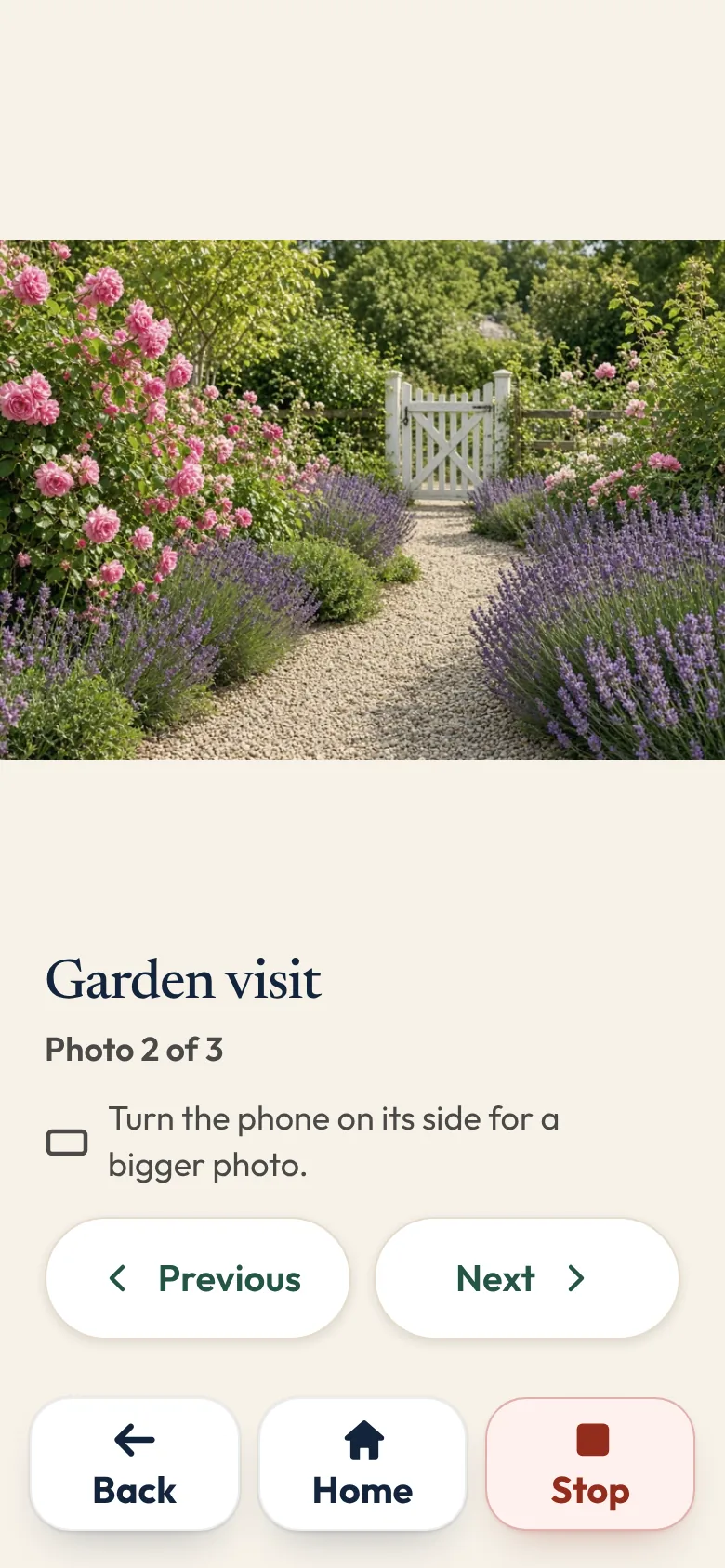
In Sunday Visit, tap Album, then Photos, then a photo. The whole photo shows, never cropped, and turned on its side it gets bigger. The photos don't change by themselves: Nan moves on with Next when she's ready.
If you'd like photos, songs and videos in one place
A shared album works well for many families. Some people would rather open one calm app where everything is waiting.
That is why we made Sunday Visit. Sunday Visit is a calm, Australian-made phone app for seniors and elderly people, with six big buttons for gentle sounds, family photos, easy movement, quiet games, memories and calls to people they trust. Family choose what's on it in a linked second app, Sunday Visit Carer.
One of its six big buttons is Album. It holds the family's photos, sounds and short videos in three lists, newest first. Nan opens a photo and moves between the photos with Previous and Next.
There are no ads, and the older person doesn't need an account, an email or a password.
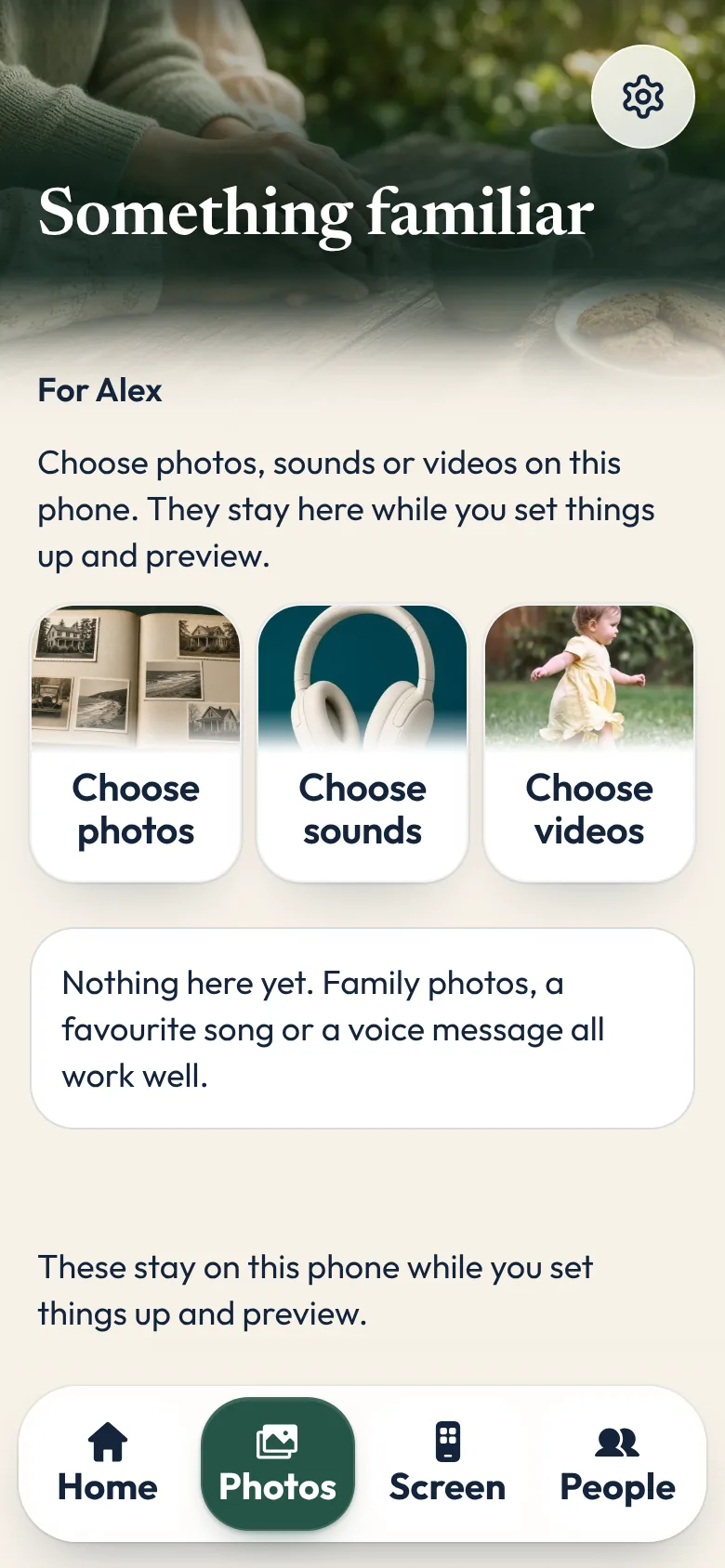
Family choose the photos in a second app, Sunday Visit Carer, preview them and send them once the two phones are linked.
Photos sent this way are copies, so the photos in your own album stay as they are.
Please set it up with the older person, never behind their back. Both apps are on Google Play. Get Sunday Visit for their phone and Sunday Visit Carer for yours. You can find them at sundayvisit.com.au.
Questions families ask
How do I put family photos on Nan's phone so she can look at them easily?
Use one shared album that family add to: a shared album in Photos on iPhone, or a shared album in Google Photos on Android. New photos turn up without her doing anything. Put the app that holds the album on her first screen.
Can my mum see family photos in a shared album?
Yes. Use a shared album in Photos or Google Photos. In Sunday Visit, family choose photos in the Sunday Visit Carer app, and they appear under Album on the older person's phone once the phones are linked. Sunday Visit is on Google Play.
Can I add voice recordings too?
Yes. Send a short voice message in Messages or WhatsApp, and say who is speaking at the start. On an iPhone, set audio messages to keep, so they aren't deleted two minutes after she plays them.
Can other family members add photos?
Yes. In both apps, people in a shared album can add photos unless the album owner turns that off.
What if she deletes something by mistake?
In a shared album, people can remove the photos they added themselves. Keep the originals in your own library as well, so nothing important lives only in the shared album.
Is there an app to share photos with grandparents?
You can share photos with grandparents using a shared album in Photos on iPhone or Google Photos on Android. Family can also add photos in Sunday Visit Carer, and they appear under Album on the grandparent's Sunday Visit once the phones are linked. Sunday Visit is on Google Play.
Can her phone be a digital photo frame?
Yes. Put it in a stand, keep it plugged in, and choose a longer screen timeout in the phone's own settings, so photos stay showing for longer. No new device is needed. In Sunday Visit, Album shows each photo whole, and she moves to the next one with Next.
More guides for families
- How to stay in touch with elderly parents who live far away
- How to set up a phone for an elderly parent, in 5 steps
- Apps for elderly parents in aged care: what to look for
- Calm games and activities for seniors, with no ads
- Gift ideas for elderly parents and grandparents
- How to make a phone simpler for seniors and elderly parents
- Reminiscence at home: photos, familiar songs and stories
- A simpler phone, with six big buttons family can set up.
Something else? The help page has more, or email hello@sundayvisit.com.au.