
Apps for elderly parents in aged care: what to look for

The most useful apps for residents in aged care in Australia have large text, no ads and very few choices, plus a way for family to add photos and contacts. Those same qualities are what to look for in apps for seniors, whether the person lives at home or in care. That kind of family engagement keeps the resident's screen simple, while family members help from their own phones. Check with the home first, as it may already use a family app or have tablets for residents.
For visits, bring something to share. Familiar photos, a favourite song and a few gentle questions about old times make a visit easier to fill.
Before you start
- Ask the resident what they would like to do. Some want to call family, some want photos, some want music, and some want nothing on a screen at all.
- Ask the home a few questions. Is there Wi-Fi in the rooms? Does the home use a family app, or have tablets residents can borrow? Can staff help with a call if needed?
- Think about hands and eyes. A stand on a table means nobody has to hold the phone or tablet while they tap.
What a family app for aged care should do
A good family app for someone in aged care is simple on their side and helpful on yours. On their screen: big buttons, clear words, very few choices, and nothing timed or scored. On the family's side: a way to add photos, songs and the people to call, from their own phones, with the resident's OK. It should never watch them or report on them. It's their phone and their choice.
Step 1. Look for these five things
When you compare apps for a resident, check for:
- Large text and big buttons. Open the app on the actual phone, at the size they use.
- No ads. On Google Play, apps with ads show a "Contains ads" label on their store page. Google's guide: Prepare your app for review.
- Very few choices. One screen with a few clear options is easier than menus inside menus.
- Nothing timed or scored. No countdowns, no lives, no "wrong".
- A way for family to help. Family should be able to add photos and the people to call, ideally from their own phones, with the resident's OK.
Step 2. Make the phone itself simpler
Before adding any app, use what is built in. iPhones with iOS 17 or later have Assistive Access, a simpler mode with large buttons and only the apps you choose. Samsung phones have Easy mode, and Pixel phones have Simple View. Our guide on making a phone simpler has the steps, with Apple's, Samsung's and Google's own help pages linked.
Step 3. Set up calls with family
- Choose one calling app and stick to it. FaceTime and WhatsApp both do video calls. Apple's guide: Make FaceTime calls on iPhone. WhatsApp's guide: How to make a video call.
- If the resident has an iPhone and some family have Android, the iPhone user can send a FaceTime link. Family on Android open it in the latest Chrome or Microsoft Edge. Apple's guide: Join a FaceTime call from an Android or Windows device.
- Agree a regular time with the family, and let staff know if they help with calls.
Step 4. Share photos from home
A shared photo album lets the whole family send photos without visiting. Use a shared album in Photos on iPhone, or Google Photos on Android. Our guide on family photos on an older person's phone walks through both.
Include old photos as well as new ones. Wedding photos, the family home or a favourite holiday can start a long conversation.
Step 5. Bring something to share on a visit
A visit can feel long when it is hard to know what to say. A few things to share help.
- Photos: look through them together. Ask about the people and places, rather than quizzing.
- Music: play a song they have loved for years, quietly.
- Questions about old times: "Where did you grow up?" "What did your mum cook on Sundays?" Let them skip any.
Memories can be sad as well as happy. If they seem upset, move on to something else. Our research page has more on why familiar photos, songs and talking about the past are worth trying.
Step 6. Set up a shared tablet or a phone on a stand
Many homes have a tablet residents can borrow, or a resident keeps a phone on a stand by the chair. You can keep it on one app for the length of a call or a photo session.
On an iPad or iPhone: Guided Access keeps the device on one app until you end it with a passcode. Turn it on in Settings, then Accessibility, then Guided Access, then set a passcode. Open the app, triple-click the top or side button (or the Home button on older models), and tap Start. Apple notes that emergency calls aren't available during a Guided Access session, so end it when the call is over. Apple's guide: Use Guided Access on iPhone or iPad.
On an Android phone or tablet: App pinning keeps one app on screen. Turn it on in Settings, then Security (or Security & location), then Advanced, then App pinning. Then open the app and pin it from the Overview screen. Unpinning asks for the PIN, pattern or password. Google's guide: Pin & unpin screens.
For hearing a call clearly: Live Captions puts the words on screen during calls and videos. It's on iPhone 11 or later and on Pixel and selected Android phones. Apple's guide: Get live captions. Google's guide: Live Caption. A stand on the table and the speaker turned up help as well. There are more phone settings for reading and hearing in our low-vision guide.
Learning together
Be Connected is an Australian Government initiative that helps older Australians build digital skills and confidence. It has short online courses, step-by-step videos and printable tip sheets, and a section for people helping others. See Be Connected.
Their right to stay connected, and to choose
Australia's aged care law includes a Statement of Rights. It says older people have the right to stay connected with the people who matter to them, such as family, friends and carers. It also says they have the right to make their own decisions, and to get information and communicate in the way they prefer. A phone or tablet set up with them, at their pace, is one way to honour that. See the Department of Health, Disability and Ageing's Statement of Rights.
For something to talk about together, try these questions to share on a visit.
Official help in Australia
My Aged Care is the Australian Government website designed to support you to learn about and access Australian Government-funded aged care services.
Where Sunday Visit fits
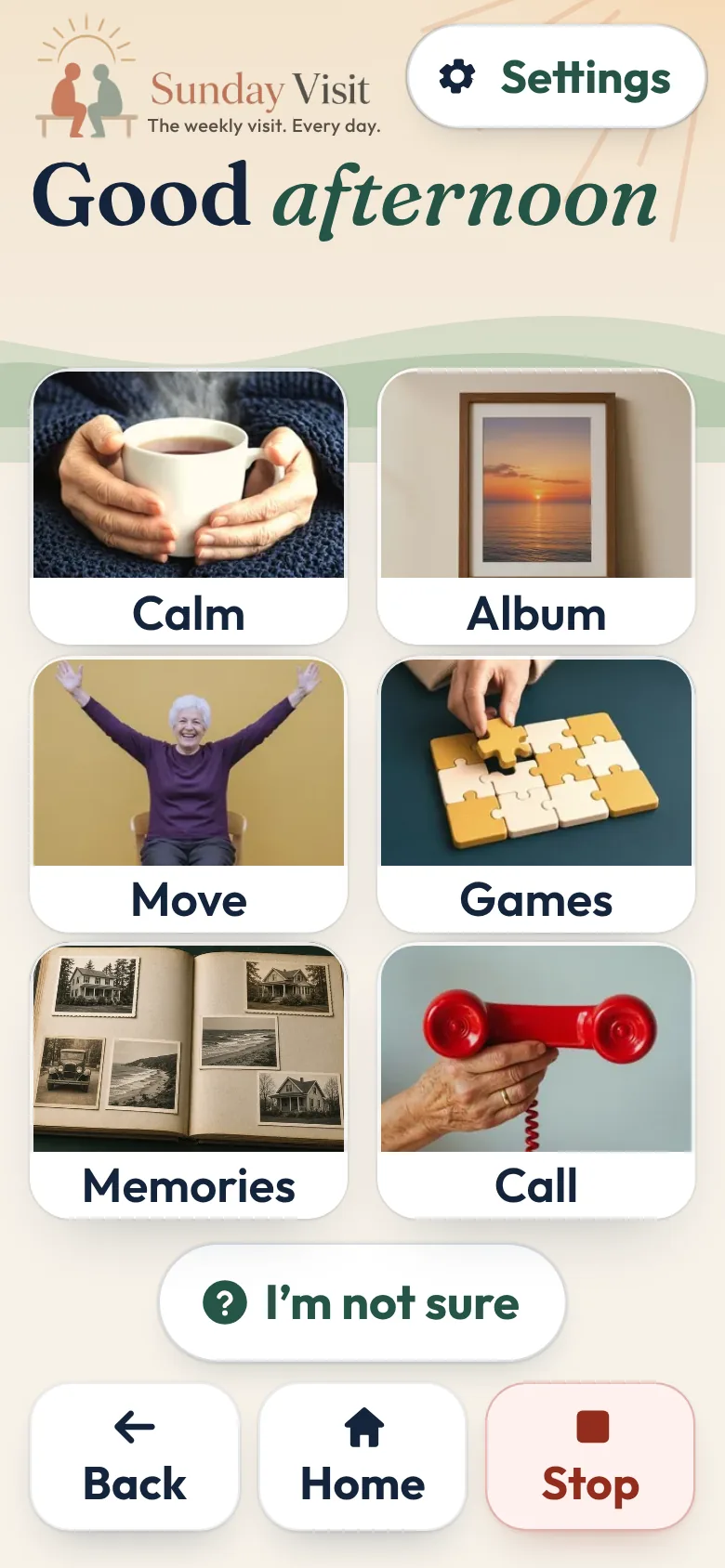
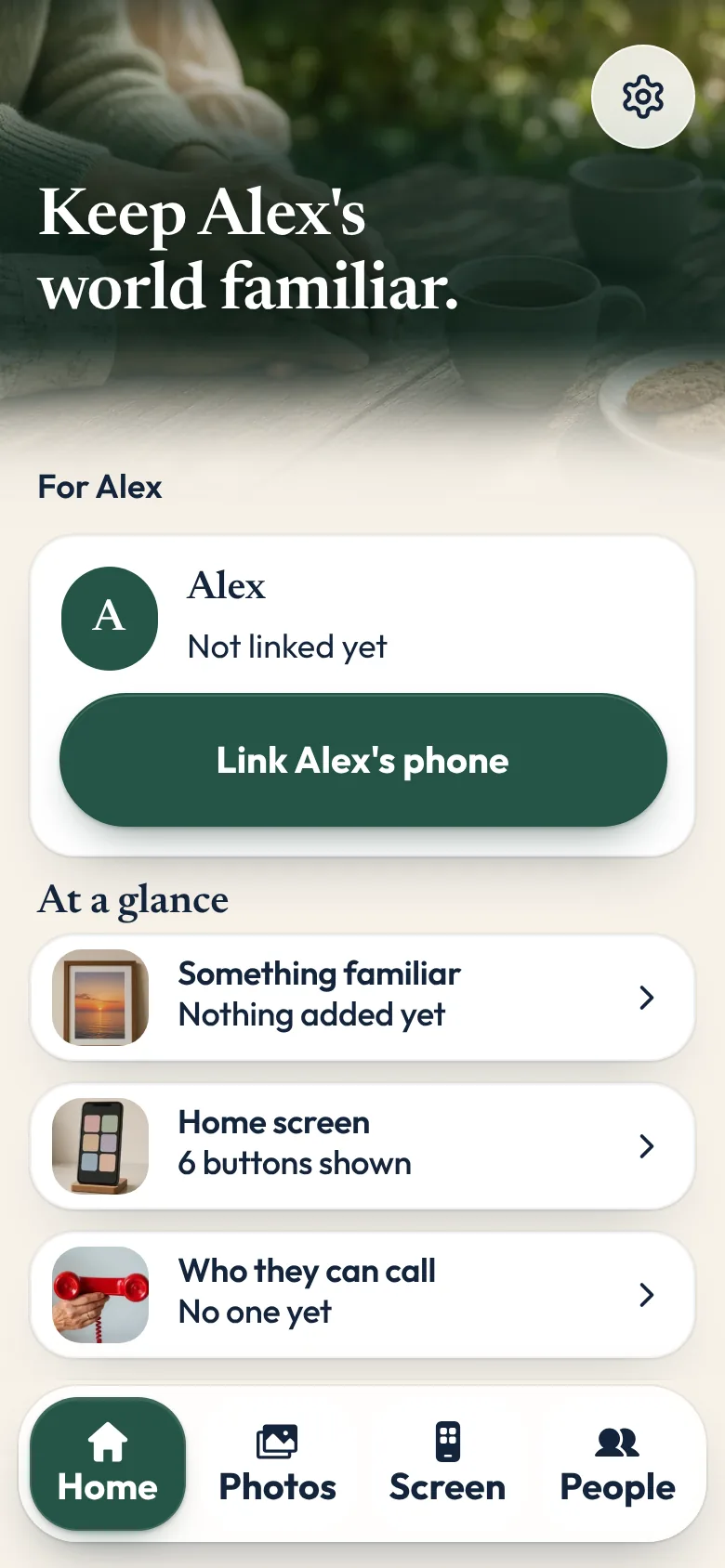
Sunday Visit is a calm, Australian-made phone app for seniors and elderly people, and anyone who'd like a simpler phone, with six big buttons for gentle sounds, family photos, easy movement, quiet games, memories and calls to people they trust. Family choose what's on it in a linked second app, Sunday Visit Carer.
It has no ads, no scores and no countdowns, and the older person doesn't need an account, an email or a password.
Memories has questions to share with a visitor, or to think about quietly, from growing up and home to music, food and celebrations. They can skip any.
Album holds family photos, songs and short videos. Call shows up to four people. They tap a name, then Call, and the phone's own dialler opens.
Family set it up in the Carer app and send changes once the phones are linked. Please set it up with the resident, never behind their back.
In an emergency, call Triple Zero (000), or your local emergency number outside Australia.
Both apps are on Google Play. Get Sunday Visit for their phone and Sunday Visit Carer for yours. You can find them at sundayvisit.com.au. Care homes and care teams can email hello@sundayvisit.com.au.
Questions families ask
What apps can we recommend to families of aged care residents to stay in touch?
Apps with large text, no ads and very few choices, plus a way for family to add photos and contacts from their own phones. Ask the home first, as it may already use a family app or have tablets for residents.
Are there apps for elderly parents, or apps for seniors in Australia?
Sunday Visit is an Australian-made option. It is a phone app for seniors and elderly people, and anyone who'd like a simpler phone, with a separate Sunday Visit Carer app for family, and no ads, scores or countdowns. In an emergency, call Triple Zero (000). Sunday Visit is on Google Play. You can find it at sundayvisit.com.au.
What helps a visit go well with a parent in care?
Something to share, such as old photos, a favourite song or a gentle question about growing up. Sunday Visit's Memories offers questions to share with a visitor, from growing up and home to music, food and celebrations.
Does the resident need their own phone?
Not always. Ask the home whether it has tablets residents can use. If they do have a phone, the steps on this page cover both iPhones and Android phones.
How can family far away help?
Add photos to a shared album, keep to a regular call time, and send short voice messages they can play again. Let staff know the call times if they help.
What should a family app for aged care do?
Keep the resident's screen simple, with big buttons and very few choices. Let family add photos and the people to call from their own phones, with the resident's OK. It should never watch them or send reports.
Can a shared tablet stay on one app during a call?
Yes. On an iPad, Guided Access keeps it on one app until you end it with a passcode. On Android, App pinning does the same. End Guided Access after the call, as emergency calls aren't available during a session.
Who decides what goes on a resident's phone?
The resident. Under the Statement of Rights in Australia's aged care law, older people have the right to make their own decisions and to stay connected with the people who matter to them. Set it up with them, not for them.
More guides for families
- How to stay in touch with elderly parents who live far away
- Calm games and activities for seniors, with no ads
- How to set up a phone for an elderly parent, in 5 steps
- A simple phone app for seniors with memory changes
- A simpler phone, and how that sits with the NDIS.
- A simpler phone, with six big buttons family can set up.
- Family photos, calls and calm things to do, close at hand.
Sunday Visit for care providers and support workers
Something else? The help page has more, or email hello@sundayvisit.com.au.